Scan a Boarding Pass, Get the Flight on Your Map
Every boarding pass carries its flight in the barcode: the airports, the flight number, the date, even your seat. Point your camera at it and My Flight Routes reads the flight and adds it to your map, with the route drawn between the two airports. It works with the paper strip from the check-in desk and the QR or Aztec code on your phone, with a photo or screenshot of either, and with an Apple Wallet pass. It is free, it works without an account, and the barcode never leaves your device.
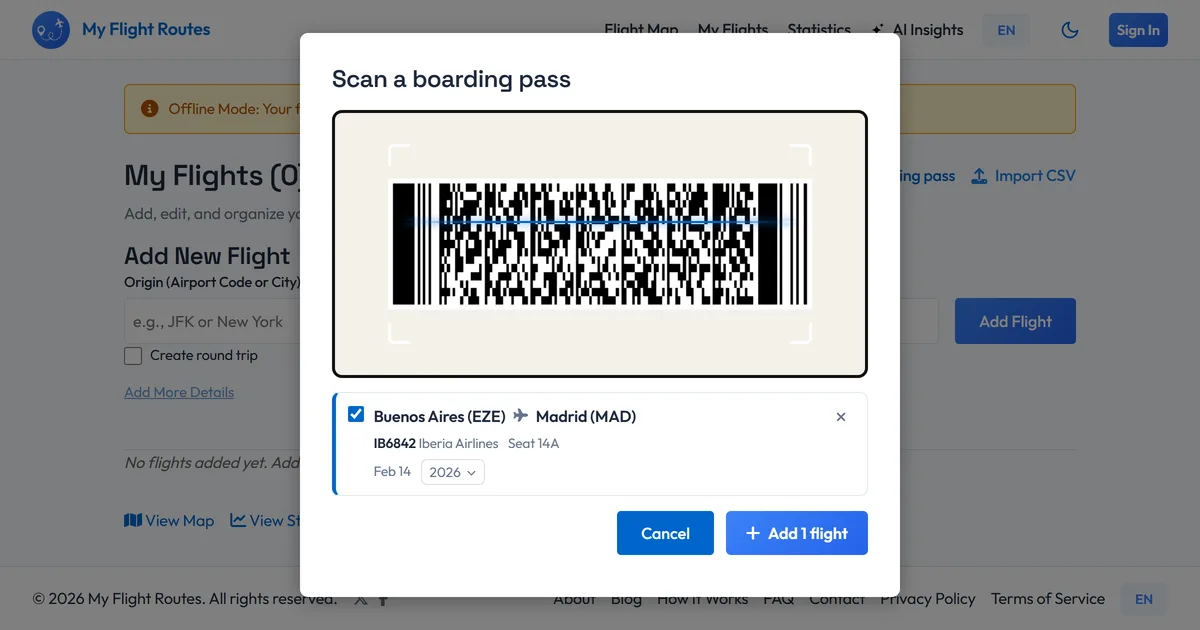
Hold the pass up to the camera and the flight appears underneath, ready to add.
Why Scan Instead of Type
Typing flights in is the slow part of keeping a flight log. Scanning takes it away:
- Exact data: The airports, flight number and date come from the airline itself, not from memory
- Seconds per flight: Hold the pass up, see the flight, tap add. A connection with two legs is read as two flights in one scan
- The whole pile: Scan pass after pass without closing anything; each one lands as a new row, and duplicates of flights already on your map are flagged
- Old passes count: The barcode has no year on it, so the scanner works out the most likely one and lets you change it with one tap for a pass from years ago
- Straight onto the map: Every scanned flight is a real flight in your log, with its route, distance and stats, the same as one typed in
What It Reads
Boarding passes come in a handful of formats, and the scanner reads all of them:
- Paper passes: The PDF417 barcode strip printed at the check-in desk or a kiosk
- Mobile passes: The QR or Aztec code in an airline app, an email or a screenshot
- Apple Wallet: Drop a .pkpass file onto the page and the flight is read from it directly, no camera needed
- Photos and screenshots: Upload a picture of a pass or drag it onto the page; a straight-on shot with the whole barcode in frame is all it needs
- Connections: A pass that covers two or three legs comes out as one row per flight
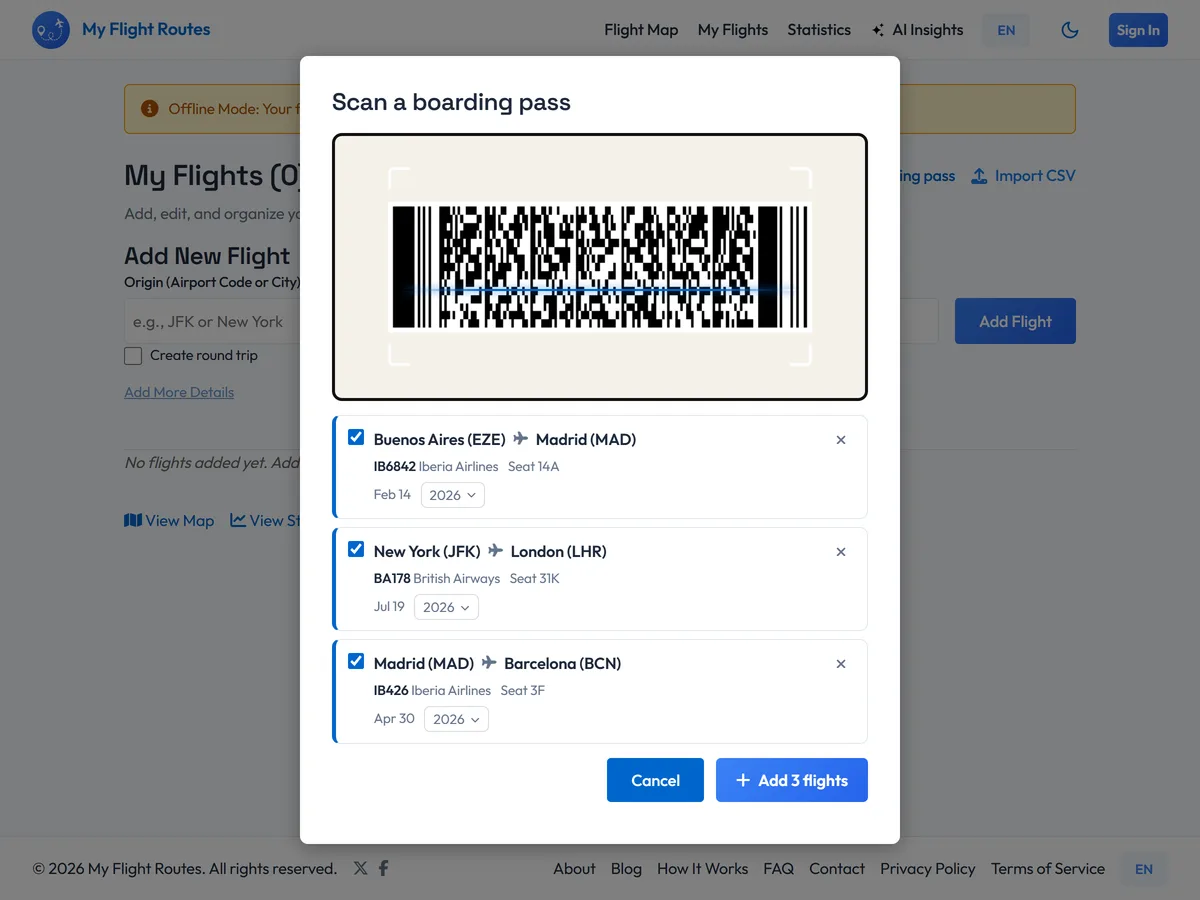
A pile of passes becomes a list of flights; add them all with one tap.
How to Scan a Boarding Pass
- Open the scanner: On your flights page, choose Scan boarding pass. Your browser asks for the camera once.
- Hold the pass up: Paper or phone, straight on, with the whole barcode in view. The flight appears underneath as soon as it is read.
- Check the year: The barcode stores the day but not the year. A pass from this trip is dated correctly; for an older one, pick the year from the dropdown.
- Keep going: Scan the next pass, and the next. Or upload photos, screenshots and Wallet files instead, several at once.
- Add them: One tap adds every flight in the list to your map, with routes, distances and stats.
Who Scans Their Boarding Passes
Anyone with flights to log and better things to do than type them:
- Frequent flyers who scan each pass at the gate and never fall behind on their log
- Anyone starting a flight map with a drawer full of old boarding passes
- Travellers who keep passes as souvenirs and want the flights recorded before the paper fades
- People who save mobile passes to a wallet or a photo library and can add a whole trip in one go
- Aviation enthusiasts who want the exact flight number and seat, not an approximation
Nothing Leaves Your Device
The barcode is read in your browser, on your phone or computer. No image and no barcode is uploaded anywhere, and the camera is only on while the scanner is open. The only thing that gets saved is the flight you choose to add, exactly as if you had typed it: airports, flight number, date and seat. Your name and booking reference, which the barcode also contains, are not stored.
Frequently Asked Questions
Is the boarding pass scanner free?
Yes. It is part of My Flight Routes and free, with or without an account. As a guest your flights stay in your browser; an account keeps them across devices.
Does it read paper boarding passes?
Yes. The strip printed on a paper pass is a PDF417 barcode, and the scanner reads it from the camera or from a photo. Good light and a straight-on view help, as they would for any barcode.
Why does it ask me to check the year?
The barcode standard stores the flight date as a day of the year, with no year at all. For a pass you have just flown with, the scanner gets it right; for a pass from years ago it picks the most recent possible year and marks it, so you can change it before adding.
Can I scan an old boarding pass?
Yes, as long as the barcode is intact. Old passes from a drawer are one of the best uses: scan them one after another, correct the years, and add the whole pile at once.
Does it work with Apple Wallet or Google Wallet passes?
Apple Wallet passes can be added as files: share the .pkpass to your browser or drop it onto the page and the flight is read from it. For any wallet, a screenshot of the pass with its barcode also works.
Is my boarding pass uploaded anywhere?
No. The barcode is decoded on your device and nothing is sent to a server. Only the flight you choose to add is saved, and your name and booking reference from the barcode are not part of it.
The flight is already written on the pass in your pocket. Let the camera read it.